Where It Runs
Runs on our indoor and outdoor robots, or on yours
The software is the same either way. Only the vehicle changes.

Our vehicle with our software
Our four-wheeled inspection robot arrives with the software already on board. We set both up around your site, the checks you need and the way your team works.
- SITE Robotics robot and software, supplied together.
- Routes and inspection points set up for your site.
- Deployment, training and support agreed with you.
Our software on your robotic vehicle
Already have a robotic vehicle? Our team can integrate the software with it. We look at your platform first, then agree the hardware interfaces, the inspection tasks and what the project covers.
- Your robotic vehicle.
- Integration with your controls, sensors and computing.
- Configuration, testing and support for your project.
How a Round Works
From mission plan to change detection
Plan the round, watch the robot carry it out, then see what changed. Three stages take you from a map to a decision by your team. This change detection is the core of automated site inspection.
Select a stage to see how it works.
Stage 01
Configure the task
Mark out where the robot may go, place the inspection points, and say what should be recorded at each one. That plan is what every round follows.
Stage 02
Supervise the mission
Watch the robot work from the operator screen. You can see where it is, which points it has covered and what it has recorded so far.
Shown with a construction site example. Tasks and site information are set up for each deployment.
A silent 15 second demonstration for a construction site, with sample data and simulated imagery. It begins with four views together: the site plan with the robot's route, a 3D view of the site, and the front and side camera views with identifier labels. It then shows the front camera view, the 3D site view while the robot moves along its route, the detail of an asset reported as not found, comparing what the robot saw with the site record, and finally the exceptions list.
Stage 03
Review what changed
Change detection compares what the robot saw with your site record. Where the two disagree, such as a container that is not in its recorded position, you see both side by side, with the image and the history, before anyone decides the follow-up.
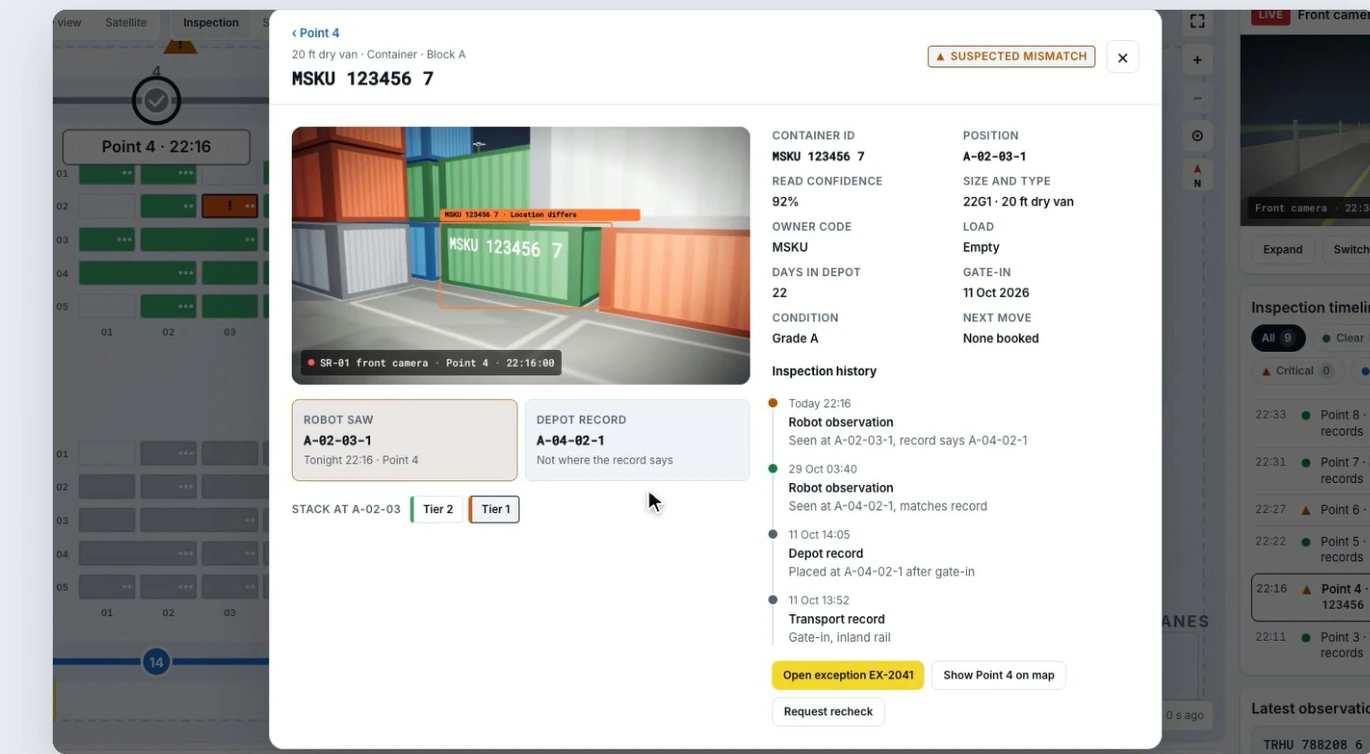
The software points out what changed. Your team checks it and decides what to do.
Mobile Mission Monitoring
Inspection findings, wherever you are
You do not need to be at a desk. Check progress, look through the camera and open findings while you are out on site.

Select a feature to explore the mobile interface.
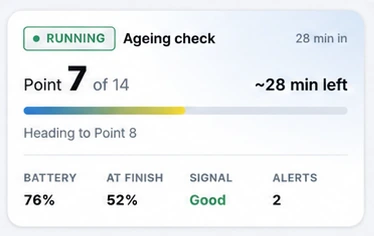
Know how the mission is progressing
See the current inspection point, estimated time remaining, battery, signal and alerts together.
Highlighted in the screenshot: the mission summary at the top of the screen.
Put observations in context
View the camera panel and access the inspection timeline to understand the mission's observations.
Highlighted in the screenshot: the view selector, with Camera selected, and the camera panel. The Timeline option sits in the same selector; this screenshot does not show an open timeline.

Find what needs your attention
Access findings for review and decide what needs further verification.
Highlighted in the screenshot: the Findings option in the view selector and the Exceptions entry in the bottom navigation. A mobile findings screen is not shown.

Review workflow
- Open a finding.
- Examine the available evidence.
- Decide the follow-up.